Published
October 29, 2026
Product update 29/10: Templates and a customisable quote view
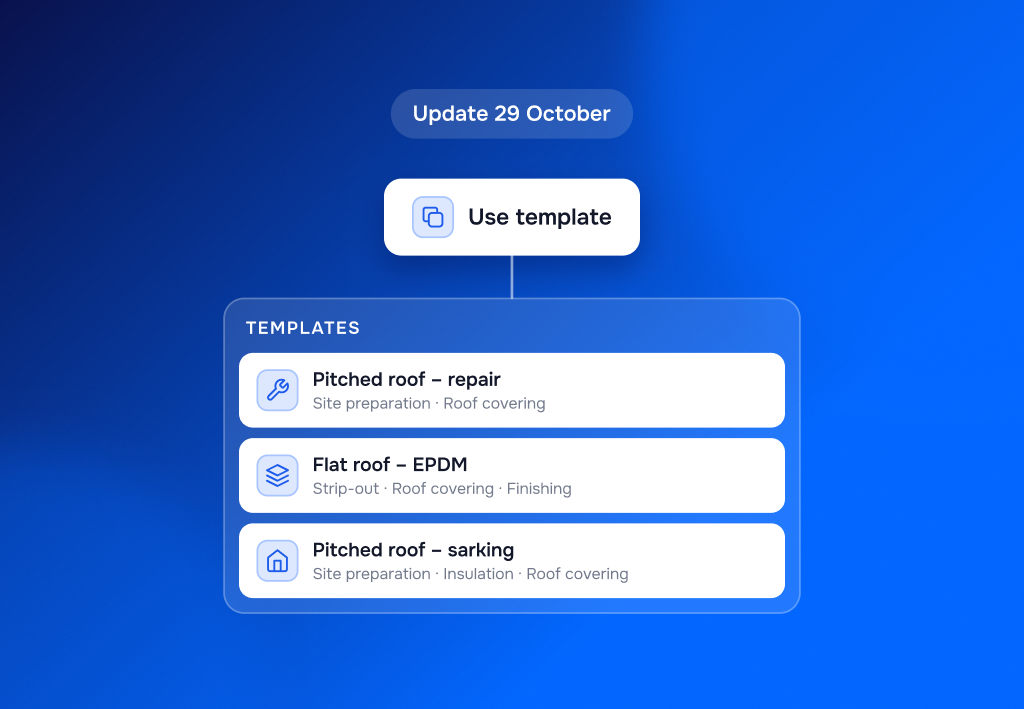
From 29 October, you can start a quote from a template. You save the standard set-up of a type of job once, and use it for every new quote. You also now choose how much detail your client sees on your quote, as we announced in our last update. Here’s what’s changed.

The Work Catalog has its own place
The Work Catalog is no longer under Settings. You’ll now find it in the sidebar, with Catalog and your templates under it.
Only admins and owners can see the Work Catalog.

Create your own templates
A template is the standard set-up of a type of job: the categories, work items, materials and labour. Everything in a template comes from your Work Catalog, so everyone works with the same work items and prices.
Admins and owners create and edit templates. Everyone in your team can use them.

Start your quote from one or more templates
For a new quote, you pick one template, or a combination of several templates. The set-up is there straight away. You fill in the quantities from the 3D model or yourself.
A few examples of templates:
- Pitched roof – repair
- Pitched roof – sarking
- Pitched roof – with insulation – with asbestos – new structure
- Flat roof – bitumen
- Flat roof – existing build-up
Your templates follow your Work Catalog
Edit a work item, or add materials or labour to it? You’ll see that in the templates that contain that work item too. A new work item doesn’t appear in your templates by itself: you add it yourself. Quotes you’ve already made don’t change.
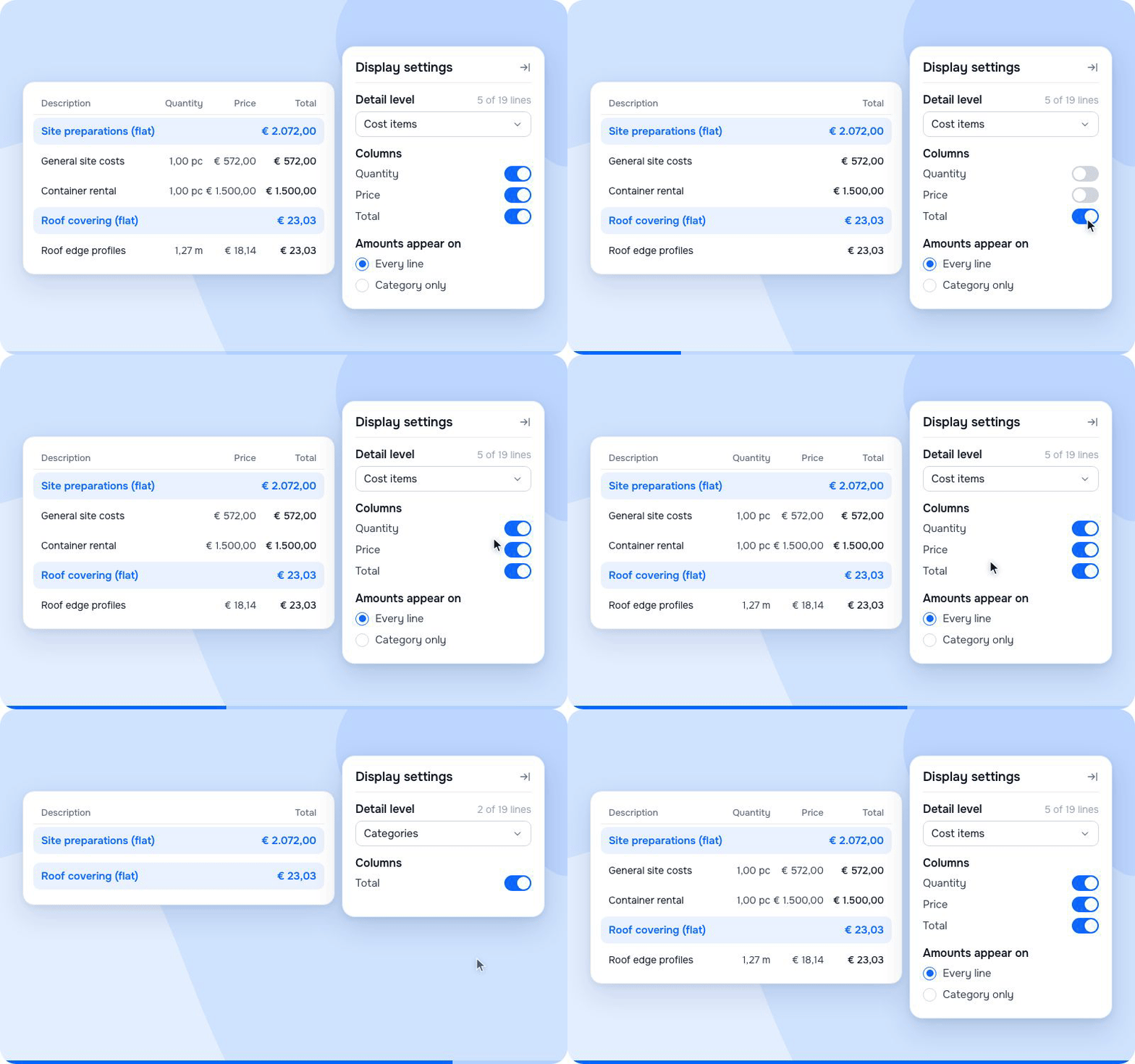
You choose what your client sees on the quote
Before you send a quote, open the display settings in the top right of the quote preview. You set them per quote:
- Detail level: from one total price to your categories, your cost items or all your resources.
- Show products: which products appear on the quote.
- Columns: switch Quantity, Price and Total on or off.
- Amounts appear on: every line, or category only.
Internally, you still see everything.
How to use it in 3 steps
- In the sidebar, go to Work Catalog → Templates and click New template.
- Give your template a name and add categories and work items from your Work Catalog.
- Start a new quote, choose Use template and select one or more templates.
Frequently asked questions
Can I use several templates in one quote?
Yes. You pick one template, or combine several. For example, you can build a quote for a pitched and a flat roof from two templates.
Can I put my own work items in a template?
Yes, as long as they’re in your Work Catalog first. Add them there, or edit an existing work item with your own name, price and labour hours. Then you can use them in any template.
Can I set materials or labour differently per template?
No. You manage the details of a work item in the Work Catalog, and they apply to all your templates. Need something different for one job? Change it in that quote.
Who can create templates?
Admins and owners create, edit and delete templates. Your other team members use them to start a quote.
Do my old quotes change when I edit the catalog?
No. Quotes you’ve already made stay as they are. Your templates do follow the catalog.
Is this available to all customers?
Yes. Templates are available to all Spotable customers.
Does my client still see all prices?
Only if you want them to. You choose it per quote in the quote preview, before you send the quote. Internally, you always see all prices.


Other
Product updates
The latest industry news, interviews, technologies, and resources.